

How to Run Garmin LiveScope on a Lowrance Unit (Step-by-Step Guide)
You’ve probably seen some of the pros in the Elite Series running a mix-and-match setup on their rigs—maybe a Garmin unit up front for that LiveScope action, and a Lowrance at the console. A question we get all the time is: "Can I see my Garmin LiveScope on my Lowrance unit?"
The answer is yes, and it’s actually easier than you might think. Let’s break down how to bridge the gap between Garmin and Lowrance for the ultimate electronics setup.
Why Link Your Garmin and Lowrance?
Most anglers prefer Garmin for its industry-leading forward-facing sonar, but they might love Lowrance for their mapping, 3-in-1 transducers, or simply because they've used them for years. By connecting the two, you can:
- Share your LiveScope view: See exactly what’s happening on your bow-mounted Garmin right from your console Lowrance unit.
- Maximize Screen Real Estate: Use your larger Lowrance display for a better look at what the LiveScope is picking up.
- Stay in the Zone: No more running back and forth or squinting at a single screen.
What You’ll Need: Compatibility & Gear
Not every unit can play nice together. You need specific models that support HDMI input and output.
Compatible Models
|
Garmin (HDMI Out) |
Lowrance (HDMI In) |
|
GPSMAP 8400 / 8600 Series |
HDS PRO |
|
GPSMAP 9000 series |
HDS Live |
|
GPSMAP 12x3 Series |
|
|
ECHOMAP 166sv ONLY (Other Echomap models do not have HDMI) |
|
The "BFE" Waterproof Connection Kit
One of the most important things we’ve learned is that standard HDMI cables won't survive long in a marine environment. You need waterproof connections to prevent rust and corrosion from ruining your expensive units.
Our custom kit includes:
- Lowrance HDMI Cable: Specifically designed for their units, ensuring a waterproof connection.
- Garmin HDMI Cable: To ensure a secure, waterproof, fit on the Garmin side.
- HDMI Coupler: To bridge the two cables.
- Marine-Grade Heat Shrink: To seal the entire connection and make it 100% waterproof before tucking it away in your console.
Step-by-Step: How to Set It Up
- Connect the Cables: Plug your Garmin HDMI cable into the "HDMI Out" port and your Lowrance cable into the "HDMI In" port.
- Bridge and Seal: Use an HDMI coupler to connect the two cables. Slide your marine-grade heat shrink over the connection and apply heat until it’s tightly sealed.
- Route the Cables: Securely tuck your cables and connections inside the console or gunnel to keep them protected and out of the way.
- Configure Settings: On your Lowrance unit, navigate to the video settings and select the HDMI input. You should now see a mirrored image of your Garmin screen!
Pro Tip: Keep It Clean
Always ensure your connections are tight and well-sealed. Saltwater or even freshwater condensation can quickly lead to signal loss if your connections aren’t protected.
Ready to upgrade your boat's tech? Whether you're chasing bass or hitting the inshore flats, we've got the gear and the expertise to help you dial it in.
Location
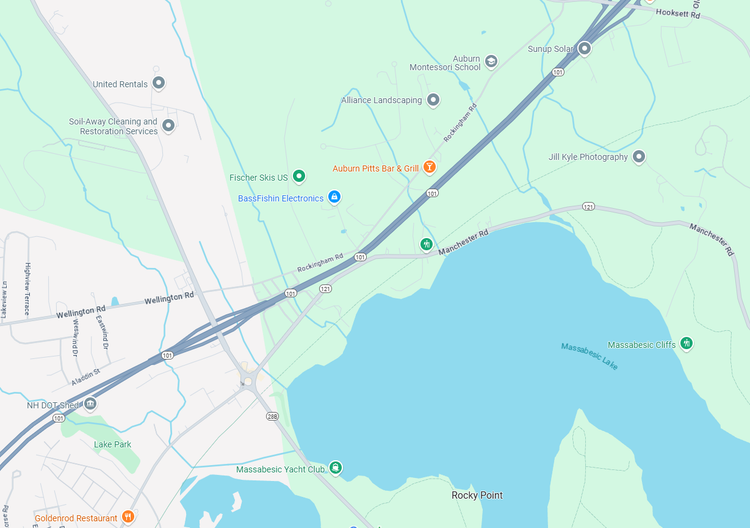
BassFishin Electronics
310 Londonderry Turnpike
Hooksett, NH 03106
Mon - Thurs, 9AM - 5PM
Fri 9AM - 4PM
Saturday, CLOSED
Sunday, CLOSED
603-264-9739 (Call/Text)
Sales@bassfishinelectronics.com
Discount available for Military and First Responders
 Get Verified